

Tutorial: Creating a New Project#
This guide provides step-by-step instructions for creating a new JITX project in VSCode.
By following this guide, you will:
Create a new JITX project in VSCode.
Run your design and view the generated schematic, board, and bill of materials.
Add and upgrade dependencies via the
pyproject.tomlfile.Identify and address common setup issues.
At the end of this guide, you will have a fully configured JITX project in VSCode, ready for building, debugging, and running your design.
Prerequisites#
Before starting, ensure you have:
Stable internet connection for initial setup
Steps#
Sign in to JITX
Open VSCode.
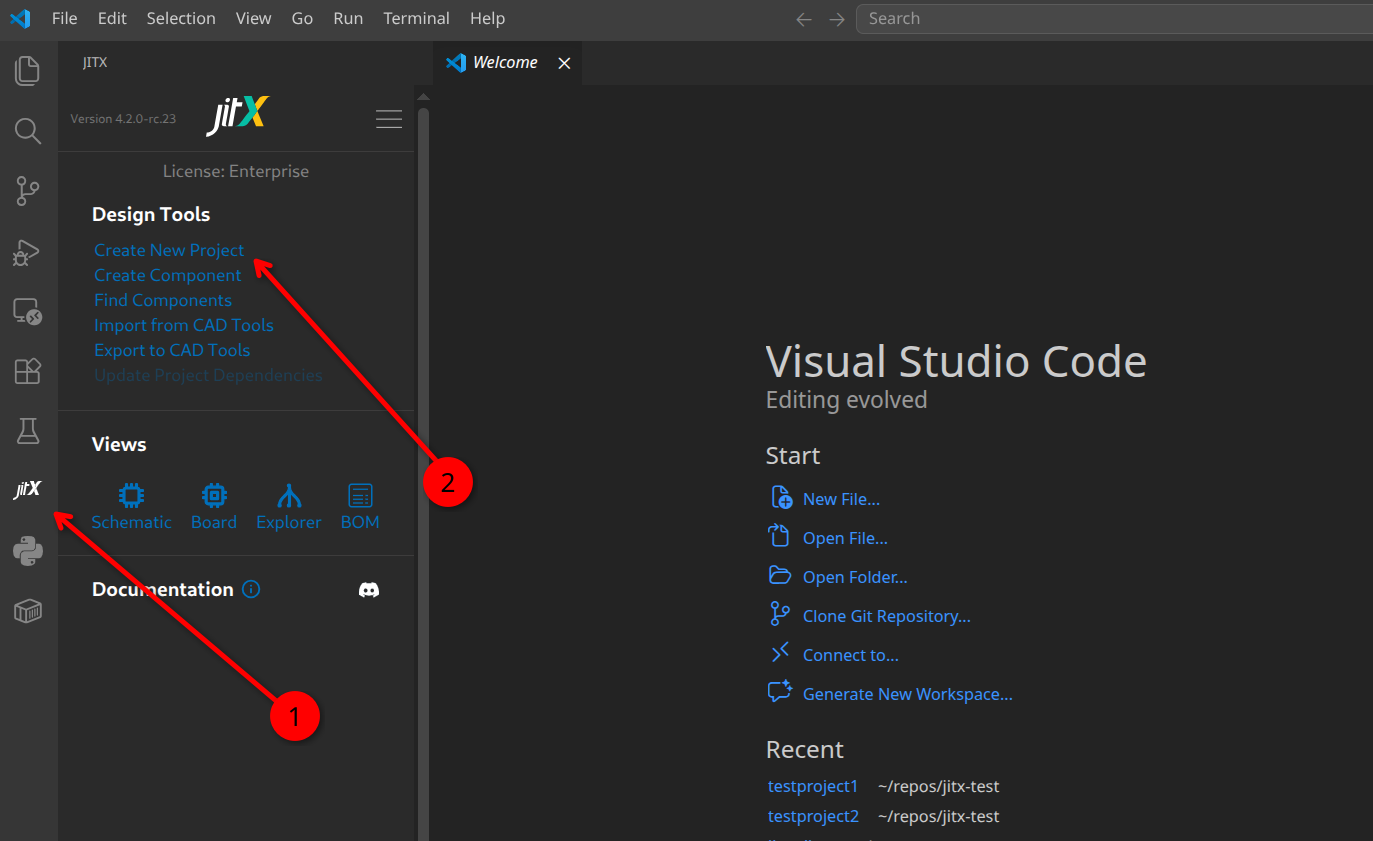
Click the JITX icon in the Activity Bar.
Sign in using your JITX credentials to ensure your account is active.
Create a New Project
In the JITX Sidebar, click Create New Project to open the New Project form.
Click Browse to select a parent directory for your project, or enter the desired path manually.
Enter your project name (e.g.,
my_jitx_project).Click the Create Project button.
After the project is created, click the Open the New Project Folder button to begin working.
Project setup
When you open your new project, JITX configures it for you automatically: it creates a
.venvvirtual environment, installs the project’s dependencies, and sets up the editor. Progress notifications appear, ending with JITX project environment ready.
Running the Design
In the VSCode sidebar, click the Run and Debug icon.
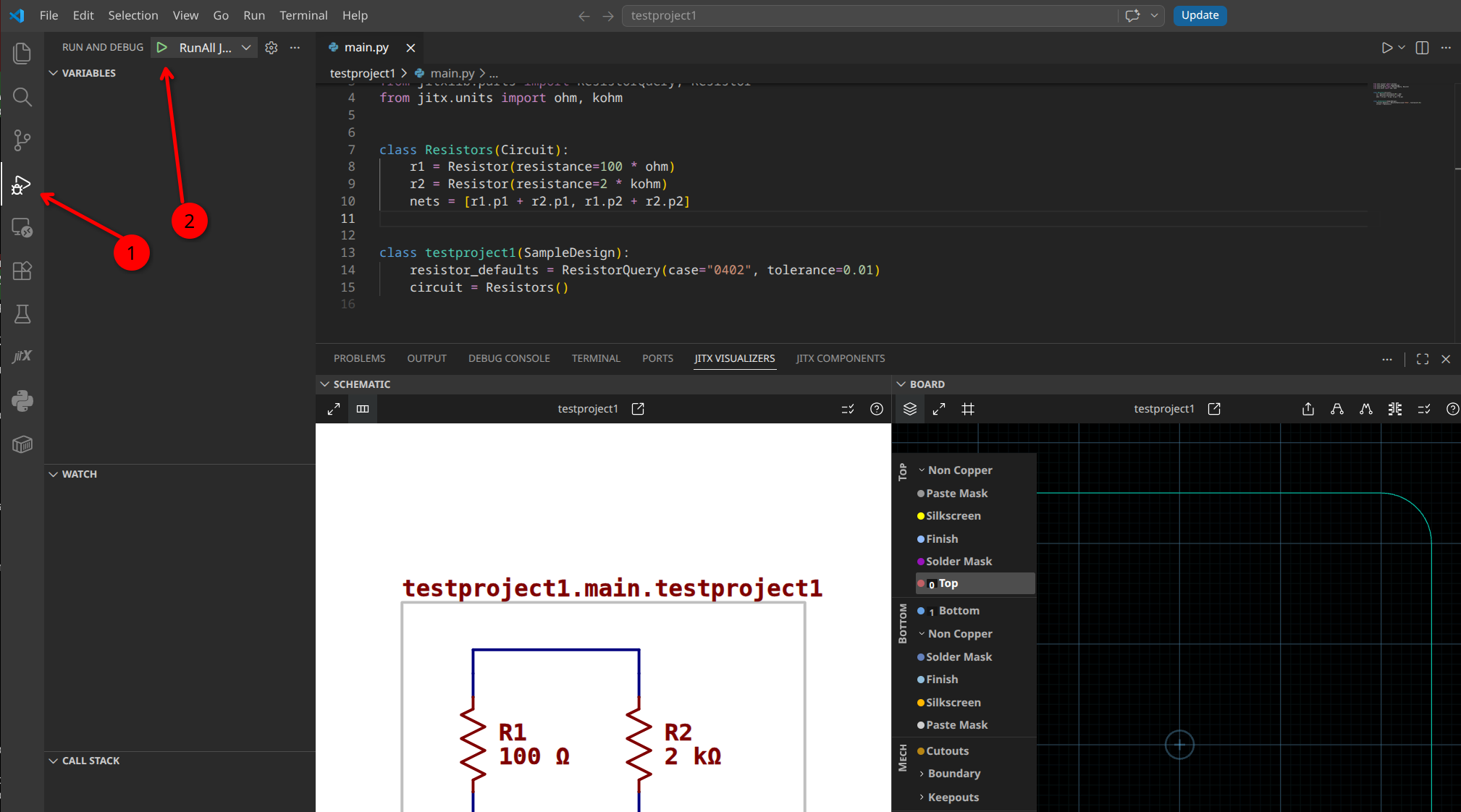
Click the Play button to start the project.
Note: After running all designs once, use the dropdown next to the Play button to select a specific design to run, or choose Run All Designs to execute all at once.
View your design
Open the interactive views from the Views section of the JITX sidebar: Schematic, Board, Explorer, and BOM.
These open as panels inside VSCode and update when you re-run your design.
Understanding your project#
Your new project’s files and folders — main.py, pyproject.toml, and the generated output — along with how to add and upgrade dependencies, work the same whether you use VSCode or the command line. See Project Basics for a tour, including the VSCode JITX: Upgrade Dependencies command.
Common Issues and Fixes#
Issue |
Cause |
Solution |
|---|---|---|
Setup fails: |
System Python can’t create virtual environments (common on Debian/Ubuntu) |
Install the venv module, e.g. |
JITX asks you to select a Python interpreter |
Your default Python is older than 3.12 or unsupported |
Pick a Python 3.12+ interpreter when prompted |
JITX not signed in |
Account token expired |
Reopen JITX sidebar and sign in |
Design doesn’t update |
File not saved |
Save ( |
Running the file gives |
Virtual environment not fully set up yet |
The environment might still be initializing. Rerun once setup completes |