

Use the JITX extension in VS Code#
Use JS0 for initial setup, or follow the manual VS Code setup instructions. The extension provides an integrated editor workflow for the same JITX projects you can build from the command line.
Install the extension#
In Visual Studio Code, open Extensions, search
for JITX, and install the JITX extension. You can also open its
Visual Studio Marketplace listing.
Use an extension version compatible with your JITX runtime. For a VS Code derivative, check its supported extension-engine version and marketplace access; availability and compatibility can differ between editors and their releases.

Open the JITX sidebar#
Click the JITX icon in the Activity Bar.
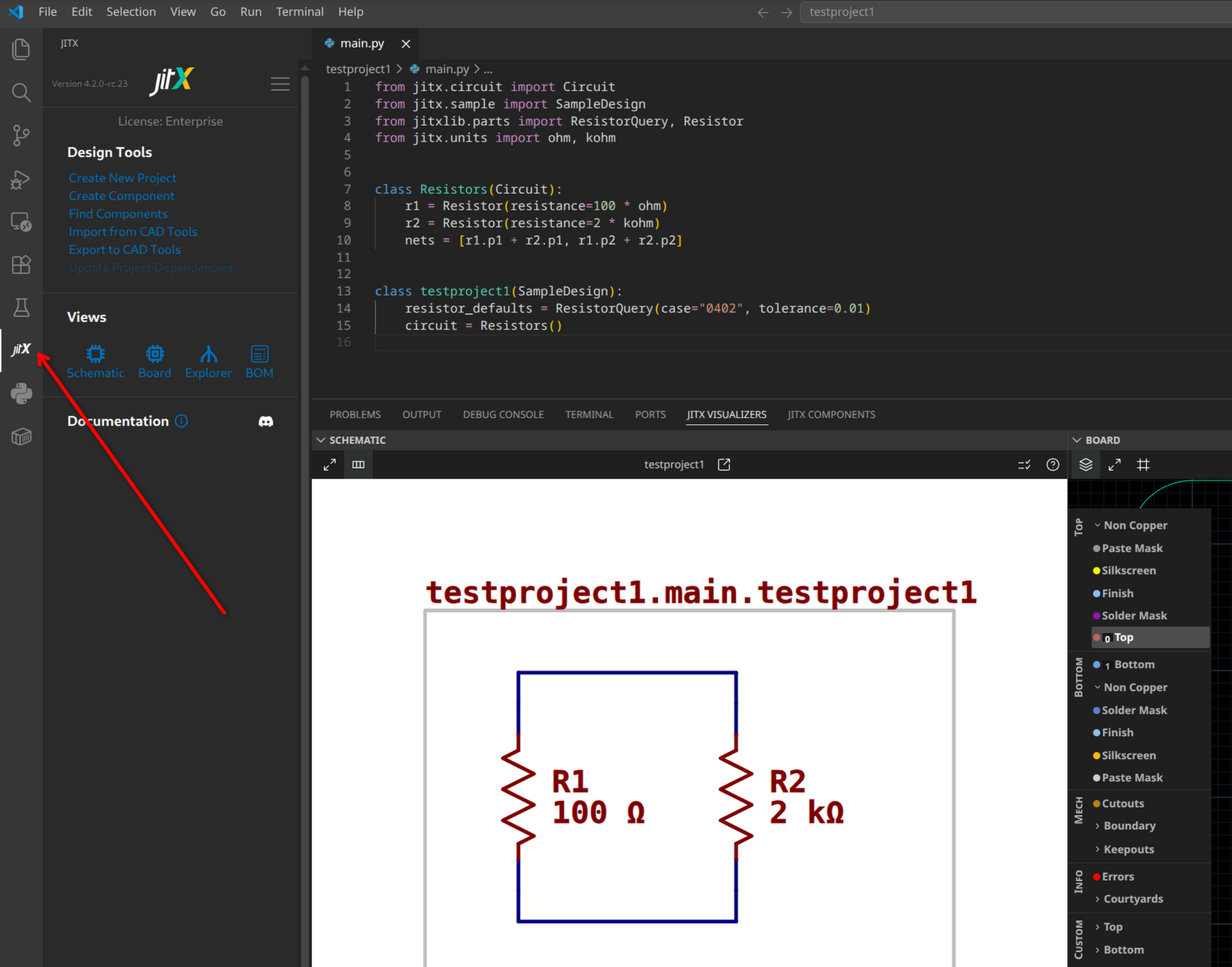
The first time the extension activates, it downloads its runtime in the background. On Ubuntu, macOS, and Windows this happens automatically. On other platforms, the extension asks which build to install:
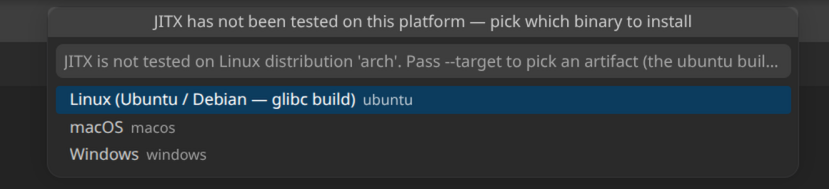
Confirm your platform and runtime requirements against JS0 environment preparation. If the sidebar asks you to sign in, use your JITX account.
Open a project#
Open your project folder in VS Code. The JITX sidebar provides the schematic and board views; Run and Debug provides the design launch configurations. For the project creation and build controls, see Create a project in VS Code.